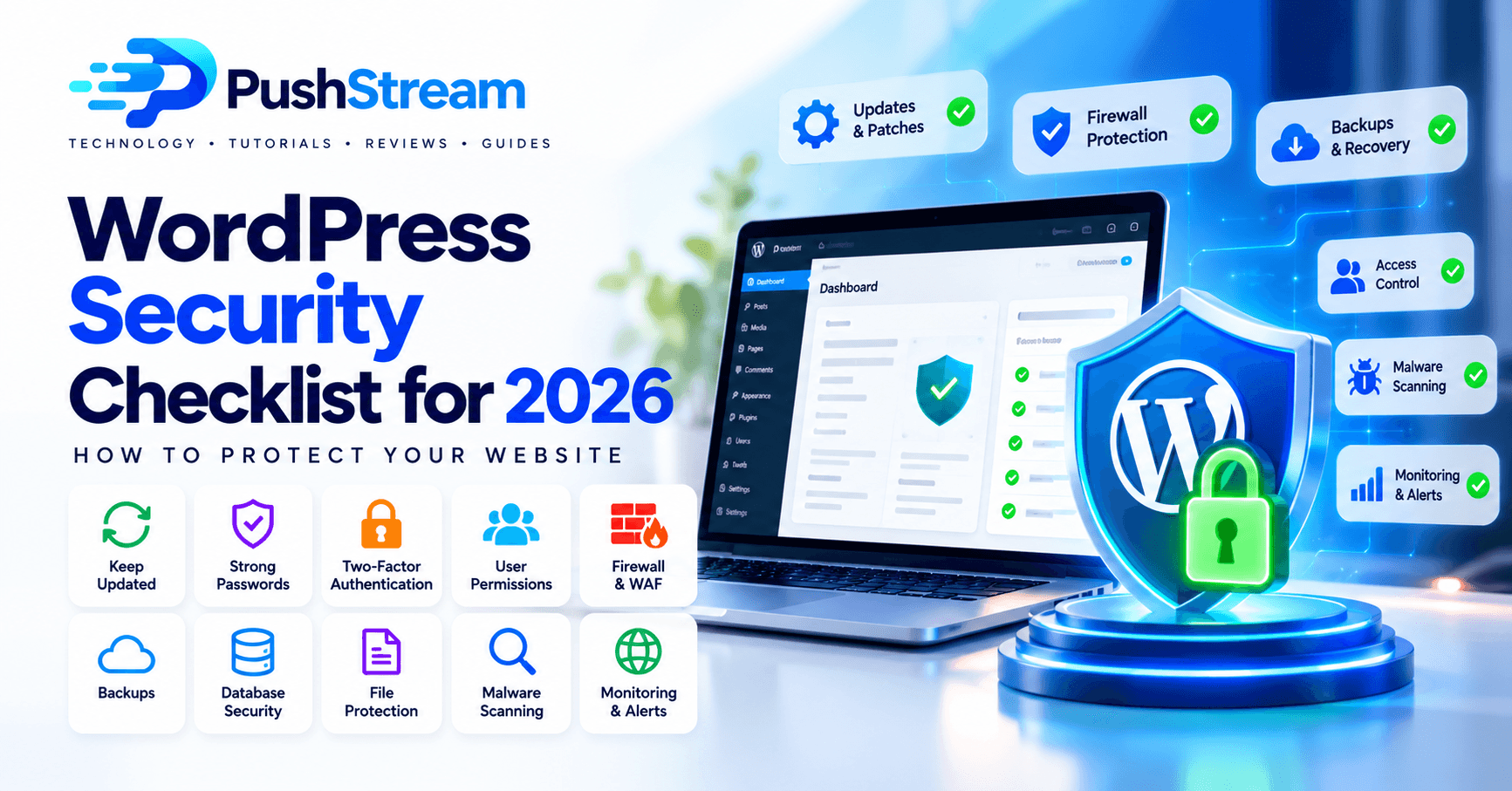
WordPress Security Checklist for 2026: Complete Guide
Protect your WordPress website in 2026 with this practical security checklist covering updates, strong passwords, 2FA, backups, firewalls, malware protection, user permissions, server hardening, and monitoring.
ABy Alex CarterOctober 6, 202622 min readUpdated October 6, 2026
Share
On this page✓
Quick Answer
Protect your WordPress website in 2026 with this practical security checklist covering updates, strong passwords, 2FA, backups, firewalls, malware protection, user permissions, server hardening, and monitoring.
WordPress Security Checklist for 2026: How to Protect Your Website
WordPress powers millions of websites, which also makes it a frequent target for automated attacks, credential stuffing, vulnerable plugins, malicious uploads, and outdated software.
The good news is that most WordPress security problems can be reduced significantly by following a disciplined checklist.
This guide covers the most important WordPress security practices for 2026, from updates and backups to user permissions, firewalls, file protection, monitoring, and incident response.
Learn how to speed up a WordPress website with caching, image optimization, CDN, database cleanup, plugin optimization, Core Web Vitals improvements, and practical performance tips.
PushStreamOct 6, 202620 min read
Stay updated
Get New Articles in Your Inbox
Join PushStream readers and get practical tutorials, reviews and useful technology tips delivered weekly.
No spam. Unsubscribe anytime.
Why WordPress Security Matters
A hacked WordPress website can lead to:
Stolen customer data
Malware injections
SEO spam
Redirects to malicious websites
Admin account takeover
Search engine warnings
Hosting suspension
Lost revenue
Damaged brand reputation
WordPress recommends a layered security approach built around limiting access, reducing attack surfaces, containing damage, using trusted sources, maintaining backups, and monitoring your environment.
1. Keep WordPress Core Updated
One of the most important WordPress security rules is simple:
Never leave WordPress core outdated.
Security vulnerabilities become more dangerous once technical details are publicly known.
WordPress recommends staying on the latest supported version and using built-in update mechanisms where appropriate.
Checklist
Update WordPress core
Enable minor security updates
Test major updates on staging first
Keep a backup before upgrading
Remove old WordPress installations from the server
2. Update Plugins and Themes
Plugins and themes are common attack surfaces.
Even if WordPress core is secure, an outdated plugin can expose the entire website.
WordPress recommends keeping plugins updated and deleting plugins you no longer use.
Checklist
Update all plugins
Update the active theme
Update inactive themes if you keep them
Delete unused plugins
Delete unused themes
Avoid abandoned plugins
Use plugins from trusted sources
Review plugin changelogs for security fixes
Do not install "nulled" or pirated premium plugins.
Modified plugins from untrusted sources may contain hidden backdoors or malware.
3. Use Strong, Unique Passwords
Weak passwords remain one of the easiest ways for attackers to gain access.
Avoid passwords based on:
Your name
Company name
Website name
Common dictionary words
Dates
Phone numbers
Reused credentials
WordPress specifically recommends strong passwords and also recommends adding two-step authentication as an additional layer of protection.
Better approach
Use a password manager to generate a long, unique password.
For example:
G7!uP3#rX9@vL2$kT8
Do not reuse your WordPress administrator password for:
Email
cPanel
Hosting
FTP
Cloudflare
Social media
4. Enable Two-Factor Authentication
Two-factor authentication, or 2FA, adds another layer of security after the password.
Even if an attacker steals the password, they may still be unable to log in without the second factor.
Recommended options include:
Authenticator apps
Hardware security keys
Passkeys where supported
Avoid relying only on SMS if stronger methods are available.
Apply 2FA to
Administrators
Editors
Developers
Hosting accounts
Cloudflare
Domain registrar
Database management accounts
5. Limit Administrator Accounts
Do not give Administrator access to everyone.
Use the minimum permission level required.
WordPress roles commonly include:
Administrator
Editor
Author
Contributor
Subscriber
Apply the principle of least privilege.
Someone who only writes posts should not need permission to install plugins or edit site settings.
Checklist
Review all users monthly
Delete unused accounts
Remove old staff accounts
Downgrade unnecessary administrators
Never share one administrator account between multiple people
6. Change the Default Admin Username
Avoid using obvious usernames such as:
admin
or:
administrator
A predictable username gives automated attackers half of the login credentials immediately.
Use a non-obvious account name.
However, changing the username alone is not a complete security solution.
Strong passwords, 2FA, login protection, and rate limiting are still more important.
7. Protect the Login Page
WordPress login pages are frequently targeted by automated bots.
Common targets include:
/wp-login.php
and:
/wp-admin/
Recommended protection methods include:
Login rate limiting
CAPTCHA where appropriate
2FA
Firewall rules
Blocking repeated failed attempts
Country restrictions for private sites
IP allowlists for high-security admin environments
Do not rely only on hiding the login URL.
8. Use HTTPS Everywhere
Your website should use HTTPS for:
Frontend pages
Login pages
Admin dashboard
API requests
Checkout
Contact forms
WordPress recommends encrypted HTTPS connections for administration and sensitive data.
Verify
Your site should redirect:
http://example.com
to:
https://example.com
Use a valid TLS certificate and enable automatic renewal.
9. Use a Web Application Firewall
A Web Application Firewall, or WAF, can block malicious requests before they reach WordPress.
WordPress documentation highlights both server-level and reverse-proxy firewall approaches.
Popular options include:
Cloudflare WAF
Sucuri
ModSecurity
Wordfence firewall
Hosting-provider firewalls
A firewall can help reduce:
Brute-force attacks
Malicious bots
Suspicious requests
Exploit attempts
Certain injection attacks
Known attack patterns
10. Install Plugins Only From Trusted Sources
Only install plugins and themes from:
WordPress.org
Reputable commercial vendors
Trusted developers
WordPress explicitly recommends using trusted sources for plugins and themes.
Avoid downloads from:
File-sharing websites
Telegram groups
Warez sites
Unknown repositories
"Free premium plugin" websites
One compromised plugin can compromise the entire website.
11. Disable WordPress File Editing
By default, administrators may be able to edit theme and plugin PHP files from the dashboard.
If an administrator account is compromised, an attacker could potentially use this feature to execute malicious code.
WordPress recommends disabling dashboard file editing as a hardening step.
Add this to wp-config.php:
text
1define( 'DISALLOW_FILE_EDIT', true );
For stricter environments you may also consider preventing plugin/theme installation from production admin access.
12. Protect wp-config.php
wp-config.php contains sensitive information such as:
Database credentials
Authentication keys
Configuration constants
Protect it carefully.
Recommended practices include:
Restricting file permissions
Preventing direct web access
Avoiding backup copies inside the public web root
Keeping credentials private
WordPress documentation also discusses storing wp-config.php one directory above the WordPress installation in compatible environments.
13. Set Correct File Permissions
Incorrect permissions can expose sensitive files or allow unauthorized modifications.
Avoid permissions such as:
777
unless there is a very specific and temporary reason.
Typical installations often use restrictive permissions such as:
Directories: 755
Files: 644
Exact permissions depend on your hosting setup.
Sensitive configuration files may require stricter permissions.
Always follow your hosting provider's recommendations.
14. Protect the Database
Your WordPress database contains:
User accounts
Password hashes
Posts
Settings
Customer data
WooCommerce orders
Plugin configuration
Security recommendations include:
Strong database passwords
Database users with only required privileges
No public database exposure
Regular backups
Restricted remote access
Do not expose MySQL port 3306 publicly unless absolutely necessary.
15. Use a Unique Database User
Each production website should ideally have its own database credentials.
Avoid using one database superuser for every website.
The WordPress database user should have only the permissions needed for that site's database.
This limits potential damage if credentials are leaked.
16. Review WordPress Security Keys and Salts
WordPress uses authentication keys and salts in wp-config.php.
Examples include:
AUTH_KEY
SECURE_AUTH_KEY
LOGGED_IN_KEY
NONCE_KEY
If you suspect a compromise, rotating these values can invalidate existing authentication cookies and force users to log in again.
Do not use predictable values.
17. Create Automatic Backups
Backups are one of the most important parts of security.
Security is not only about preventing attacks.
You also need a recovery plan.
WordPress emphasizes having backups and being prepared to recover after a compromise or disaster.
Back up:
Database
Uploads
Themes
Plugins
Configuration files
18. Store Backups Offsite
A backup stored only on the same server is not enough.
If the server is compromised, deleted, or corrupted, the attacker may also delete your backups.
Keep copies in another location such as:
S3-compatible storage
Google Drive
Dropbox
Remote backup server
Hosting snapshot service
Follow the 3-2-1 backup principle where practical:
3 copies
2 different storage types
1 copy offsite
19. Test Your Backups
A backup that cannot be restored is not useful.
Regularly test:
Database restore
File restore
Full website recovery
Document the restoration procedure.
During an incident, you should not be learning the recovery process for the first time.
20. Monitor Login Activity
Security monitoring can help detect attacks early.
Watch for:
Repeated failed logins
Logins from unusual countries
New administrator accounts
Unexpected password resets
Unknown IP addresses
Login activity at unusual times
Consider enabling security alerts for administrators.
21. Monitor File Changes
Unexpected file changes may indicate:
Malware
Backdoors
Unauthorized plugin modifications
Theme injections
Compromised administrator accounts
File integrity monitoring can alert you when sensitive files change unexpectedly.
Pay particular attention to:
wp-config.php
.htaccess
Theme PHP files
Plugin PHP files
wp-content/uploads
22. Scan for Malware
Run regular malware scans.
Look for:
Obfuscated PHP
Suspicious JavaScript
Unknown administrator users
Spam pages
Redirect scripts
Backdoor files
Modified WordPress core files
Security plugins and external scanners can assist, but no scanner is perfect.
Server-level inspection may be necessary after a serious compromise.
23. Disable Unused Plugins and Themes Completely
Do not merely deactivate software you no longer need.
Delete it.
Unused code can still create risk if files remain accessible on the server.
WordPress recommends deleting unused plugins.
24. Protect XML-RPC If You Do Not Need It
xmlrpc.php supports some WordPress remote features and integrations.
Depending on your environment, attackers may abuse it for automated requests.
Do not blindly disable it if you use services that require it.
Instead:
Identify whether your site needs XML-RPC
Rate-limit suspicious access
Restrict it when unnecessary
Use firewall rules where appropriate
Test Jetpack, mobile apps, and integrations before disabling it.
25. Secure the REST API Properly
Do not assume the WordPress REST API should simply be disabled.
WordPress itself and many plugins depend on it.
Instead:
Require authentication where necessary
Check capabilities
Validate request data
Sanitize input
Escape output
WordPress developer guidance stresses validating and sanitizing incoming data and properly escaping untrusted output.
26. Protect Forms Against CSRF
Developers building custom WordPress forms should protect state-changing requests against Cross-Site Request Forgery.
WordPress provides nonces for this purpose.
Its developer documentation recommends using nonces for forms and actions where user intent must be verified.
For custom plugins, always use the WordPress security APIs instead of inventing your own protection.
27. Validate and Sanitize User Input
Never trust data just because it came from your own website.
Untrusted data may originate from:
Forms
URLs
API requests
User profiles
Third-party services
Database content
WordPress development guidance follows the principle of never trusting user input, validating and sanitizing incoming data, and escaping output appropriately.
Developers should use WordPress functions such as:
sanitize_text_field()
sanitize_email()
esc_html()
esc_attr()
esc_url()
wp_kses()
depending on the context.
28. Use Nonces and Capability Checks Together
A nonce alone does not prove authorization.
Custom actions should generally verify:
User authentication
User capability
Nonce
Input validation
For example, a user should not be able to perform administrator actions simply because they possess a valid nonce.
29. Protect the Uploads Directory
Attackers often attempt to upload executable files.
Your media upload system should restrict:
File type
MIME type
Extension
File size
Do not allow arbitrary PHP files inside media uploads.
For high-security deployments, consider server rules that prevent script execution inside wp-content/uploads.
30. Restrict Server Access
SSH and hosting access are just as important as WordPress security.
Recommended practices:
Use SSH keys
Disable password SSH login where practical
Restrict root login
Use a firewall
Keep SSH software updated
Limit access by IP when possible
Use fail2ban or equivalent protections
A secure WordPress dashboard cannot protect an insecure server.
31. Keep PHP and Server Software Updated
Your security posture depends on the entire stack.
Keep updated:
PHP
Nginx or Apache
MySQL or MariaDB
Operating system
OpenSSL
Control panel software
WordPress security guidance emphasizes keeping the web server and software stack on supported, secure versions.
32. Disable Directory Listing
Visitors should not be able to browse directories simply because no index file exists.
Disable directory indexing at the server level.
For Apache:
text
1Options -Indexes
For Nginx, ensure:
text
1autoindex off;
This reduces accidental information exposure.
33. Protect Sensitive Backup Files
Never leave files such as these inside public directories:
backup.zip
site-old.zip
database.sql
.env
wp-config-old.php
backup.tar.gz
Attackers actively scan for predictable backup filenames.
Store backups outside the public web root.
34. Hide Detailed Production Errors
Production websites should not expose sensitive PHP errors to visitors.
Detailed errors may reveal:
File paths
Database structure
Plugin names
Server configuration
Log errors privately instead.
In production:
text
1define( 'WP_DEBUG', false );
If debugging is temporarily necessary, log errors securely rather than displaying them publicly.
35. Use Security Headers
HTTP security headers can provide additional browser-side protection.
Consider configuring:
Content-Security-Policy
X-Content-Type-Options
Referrer-Policy
Permissions-Policy
Strict-Transport-Security
Be careful with Content Security Policy because an overly strict policy can break WordPress plugins or third-party services.
Deploy it gradually.
36. Secure WooCommerce Sites More Strictly
WooCommerce websites may contain:
Customer information
Order history
Addresses
Payment metadata
Additional recommendations:
Enforce HTTPS
Require 2FA for store administrators
Limit access to orders
Keep payment plugins updated
Review webhook security
Monitor fraudulent account creation
Protect APIs
Use PCI-compliant payment providers
Do not store raw card data yourself unless you have a legitimate and compliant reason.
37. Review Scheduled Tasks
Plugins often create WordPress cron tasks.
Unused or malicious scheduled tasks can:
Send spam
Execute unwanted jobs
Consume server resources
Recreate deleted malware
Inspect unexpected cron jobs if you suspect a compromise.
38. Monitor Outbound Email
A hacked WordPress site may be used to send spam or phishing emails.
Watch for:
Sudden increases in email volume
Unknown recipients
Failed delivery spikes
Hosting abuse warnings
Use authenticated SMTP or a reputable transactional email service and enable alerts where possible.
39. Protect DNS and Your Domain Registrar
An extremely secure WordPress server can still be hijacked if an attacker gains control of your domain.
Secure your registrar account with:
Strong password
MFA
Registrar lock
Restricted account access
Enable DNSSEC if appropriate and supported.
40. Secure Cloudflare or CDN Accounts
If you use a CDN or reverse proxy, protect that account as carefully as your WordPress administrator account.
An attacker controlling your CDN or DNS may be able to:
Redirect traffic
Disable protections
Modify DNS
Proxy visitors to malicious infrastructure
Use MFA and restrict administrative access.
41. Avoid Shared Administrator Credentials
Each administrator should have their own account.
This allows you to identify:
Who changed settings
Who installed a plugin
Who deleted content
Which account was compromised
Shared accounts destroy accountability.
42. Create an Incident Response Plan
Do not wait until your website is hacked to decide what to do.
Prepare an incident plan covering:
Put the site in maintenance mode if necessary
Preserve logs
Identify the attack
Reset credentials
Rotate security keys
Remove malicious files
Patch the vulnerability
Restore from a clean backup if necessary
Notify affected users when required
Monitor closely after recovery
43. What to Do If Your WordPress Site Is Hacked
If you discover a compromise:
Step 1 — Do not immediately delete everything
Preserve logs and evidence first if possible.
Step 2 — Restrict access
Temporarily block malicious access or place the site in maintenance mode.
Step 3 — Reset credentials
Rotate:
WordPress passwords
Hosting password
SSH credentials
Database password
SMTP credentials
API keys
Step 4 — Remove unknown administrators
Check all user accounts.
Step 5 — Identify the vulnerable component
Look for:
Outdated plugins
Vulnerable themes
Weak credentials
Malicious uploads
Step 6 — Restore clean files
Replace compromised WordPress core files and affected plugins/themes with trusted copies.
Step 7 — Patch before reopening
Do not simply restore a backup if the same vulnerability still exists.
WordPress Security Checklist for 2026
Use this checklist regularly.
WordPress Core
WordPress core updated
Security updates enabled
No abandoned WordPress installations
Plugins and Themes
Plugins updated
Themes updated
Unused plugins deleted
Unused themes deleted
No nulled software
Plugins from trusted sources only
Accounts
Strong unique passwords
2FA enabled
Old users removed
Administrator access limited
No shared admin accounts
Server
PHP updated
Web server updated
Operating system patched
Firewall enabled
SSH secured
Database not publicly exposed
WordPress Hardening
File editor disabled
wp-config.php protected
Correct file permissions
Directory listing disabled
Upload directory protected
Network
HTTPS enabled
HTTP redirects to HTTPS
WAF enabled
Brute-force protection active
CDN account protected with MFA
Backups
Automatic backups enabled
Database backed up
Files backed up
Offsite backups stored
Restore process tested
Monitoring
Login monitoring enabled
File integrity monitoring enabled
Malware scanning enabled
Security alerts configured
Server logs reviewed
Development
Inputs validated
Inputs sanitized
Outputs escaped
Nonces used for state-changing actions
Capabilities checked
Secrets not stored in public files
Frequently Asked Questions
Is WordPress secure in 2026?
WordPress can be run securely when core software, themes, plugins, hosting, credentials, and permissions are maintained properly. Many compromises happen because of outdated software, weak passwords, untrusted plugins, or poor server configuration rather than a single issue in WordPress itself.
What is the most important WordPress security step?
Keeping WordPress core, plugins, and themes updated is one of the most important steps. WordPress documentation explicitly emphasizes staying current with supported versions.
Do I need a WordPress security plugin?
Not always, but a reputable security plugin can provide useful features such as login protection, scanning, firewall capabilities, and alerts. Server-side and CDN-level security should still be considered separately.
Should I hide the WordPress login URL?
You can change or restrict the login URL as an additional measure, but it should not replace strong passwords, MFA, rate limiting, and firewall protection.
Should I disable XML-RPC?
Only if your site does not require it. Some integrations depend on XML-RPC. Rate limiting or firewall rules may be more appropriate than blindly disabling it.
How often should I back up WordPress?
The appropriate schedule depends on how frequently the site changes. A busy WooCommerce site may require frequent database backups, while a small static blog may require fewer. Always maintain an offsite copy.
Final Thoughts
There is no single setting that makes a WordPress website completely secure.
Good security comes from multiple layers:
Updates
Strong authentication
Least-privilege permissions
Secure hosting
Firewalls
Monitoring
Backups
Safe development practices
A clear recovery plan
Start with the highest-impact steps:
Update WordPress, plugins, and themes
Enable 2FA
Remove unnecessary administrator accounts
Configure automatic offsite backups
Enable a firewall
Protect wp-config.php
Disable dashboard file editing
Monitor login activity and file changes
Security is an ongoing process, not a one-time setup.
Review this checklist regularly and especially after installing new plugins, changing hosting providers, adding administrators, or making major changes to your website.

Comments
No approved comments yet.