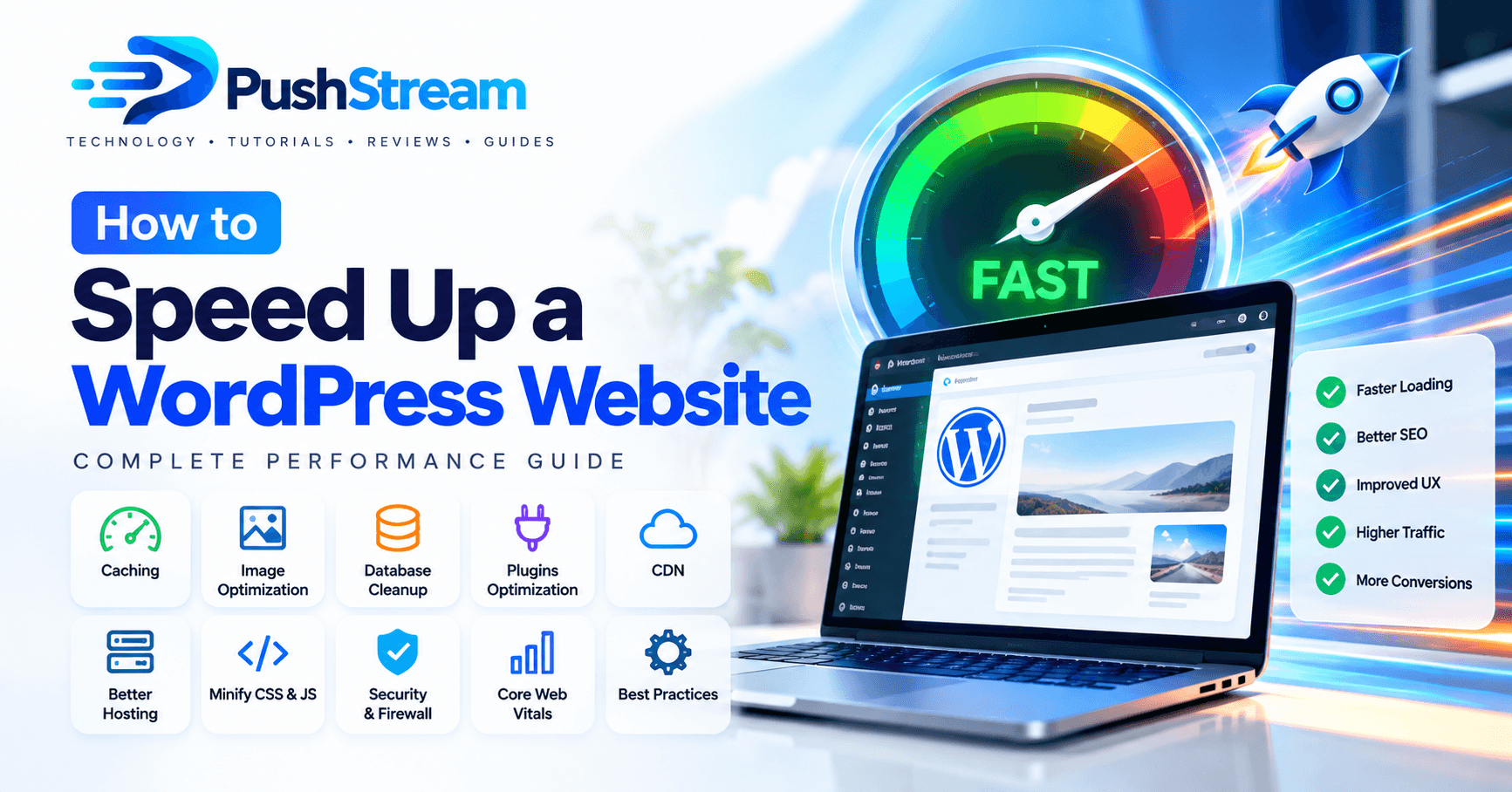
How to Speed Up a WordPress Website: Complete Performance Guide
Learn how to speed up a WordPress website with caching, image optimization, CDN, database cleanup, plugin optimization, Core Web Vitals improvements, and practical performance tips.
ABy Alex CarterOctober 6, 202620 min readUpdated October 6, 2026
Share
On this page✓
Quick Answer
Learn how to speed up a WordPress website with caching, image optimization, CDN, database cleanup, plugin optimization, Core Web Vitals improvements, and practical performance tips.
How to Speed Up a WordPress Website: Complete Performance Guide
A slow WordPress website can hurt more than just the user experience. Visitors may leave before your pages finish loading, conversion rates can drop, and poor performance can make it harder to deliver the kind of page experience users expect.
The good news is that you do not need to rebuild your entire website to make WordPress faster. In many cases, a combination of better hosting, caching, image optimization, plugin cleanup, database maintenance, and frontend improvements can make a dramatic difference.
In this guide, we will walk through the most effective ways to speed up a WordPress website, from simple beginner-friendly fixes to more advanced performance optimizations.
Why WordPress Speed Matters
Website speed affects almost every part of your online presence.
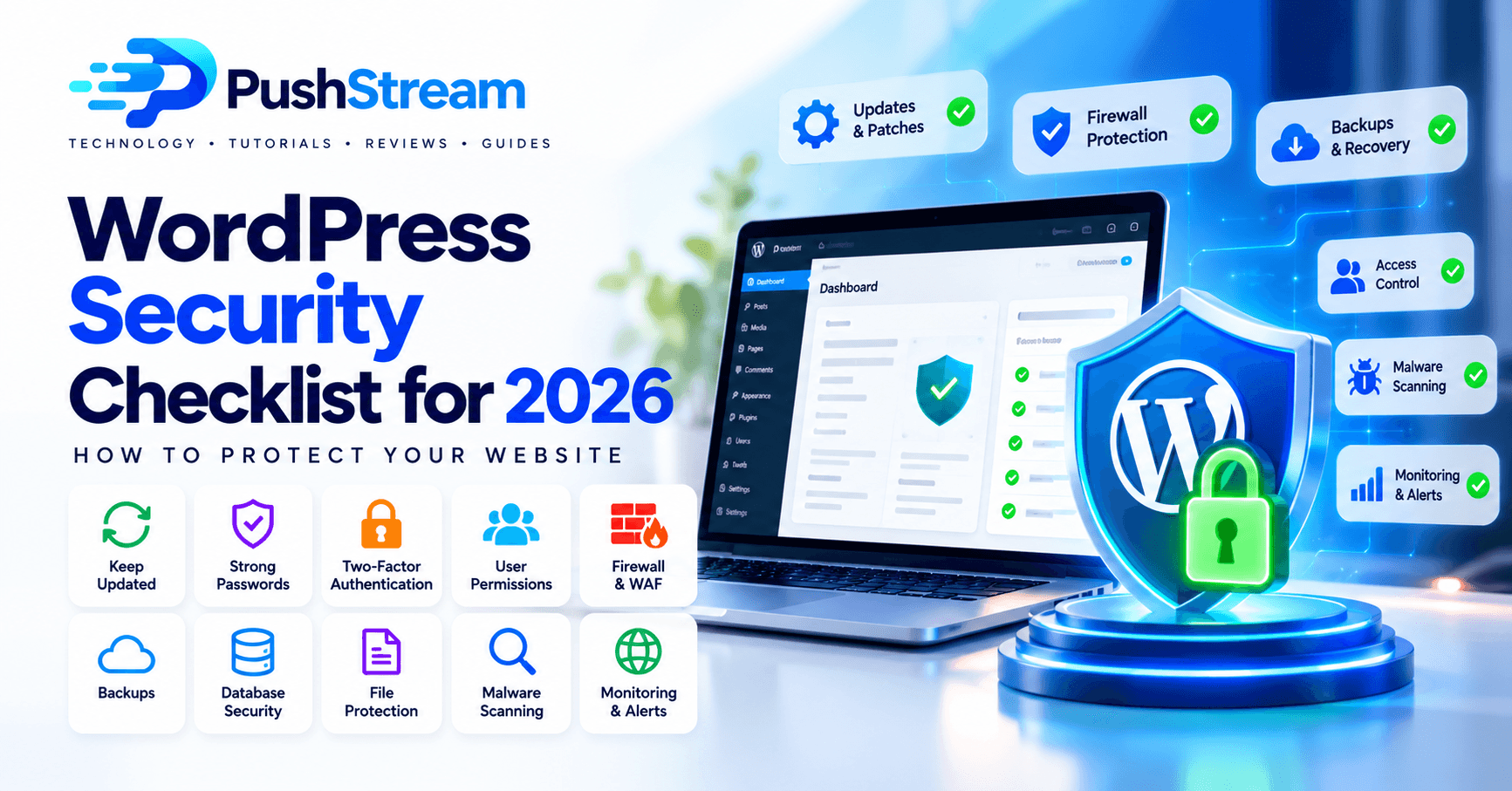
Protect your WordPress website in 2026 with this practical security checklist covering updates, strong passwords, 2FA, backups, firewalls, malware protection, user permissions, server hardening, and monitoring.
PushStreamOct 6, 202622 min read
Stay updated
Get New Articles in Your Inbox
Join PushStream readers and get practical tutorials, reviews and useful technology tips delivered weekly.
No spam. Unsubscribe anytime.
A faster website can help you:
Improve the user experience
Reduce bounce rates
Increase page views
Improve conversions
Provide a better mobile experience
Handle more traffic with fewer server resources
Improve Core Web Vitals
Support stronger SEO performance
Google recommends providing a strong overall page experience and considers Core Web Vitals as part of its ranking systems. However, speed should not be optimized only for a perfect score—the main goal should be creating a fast and comfortable experience for real users.
1. Test Your Website Speed First
Before changing anything, measure your current performance.
Useful tools include:
Google PageSpeed Insights
Chrome DevTools
Lighthouse
GTmetrix
WebPageTest
Do not focus only on the overall performance score.
Pay attention to metrics such as:
Largest Contentful Paint (LCP)
LCP measures how quickly the largest important element visible on the page loads.
This is often:
A hero image
A large heading
A banner
A featured image
Interaction to Next Paint (INP)
INP measures how responsive your website feels when someone interacts with it.
Slow JavaScript, complex layouts, and heavy plugins can negatively affect responsiveness.
Cumulative Layout Shift (CLS)
CLS measures unexpected movement on the page.
For example, a page may shift when:
An image loads without dimensions
An advertisement suddenly appears
A web font changes the size of text
A banner loads above existing content
Record your current results before making changes so you can compare performance afterward.
2. Choose Fast WordPress Hosting
Your hosting environment is one of the biggest factors affecting WordPress performance.
You can optimize your website extensively, but weak hosting can still create slow server response times.
Look for hosting that provides:
Modern PHP versions
SSD or NVMe storage
Sufficient RAM and CPU resources
Server-level caching
HTTP/2 or HTTP/3 support
Brotli or GZIP compression
A reliable database server
Optional Redis object caching
Data centers close to your target audience
WordPress documentation specifically notes that CPU, memory, storage performance, server load, software versions, and geographic distance can all affect website speed.
If your website regularly hits CPU, RAM, process, or I/O limits, moving from cheap shared hosting to a quality VPS or managed WordPress hosting service may provide a significant improvement.
3. Enable Full-Page Caching
Caching is one of the easiest and most effective ways to make WordPress faster.
Without page caching, WordPress may need to:
Execute PHP
Query the database
Load plugins
Process the theme
Generate HTML
for every visitor.
With page caching, WordPress can serve a previously generated version of the page instead.
WordPress documentation describes caching as one of the quickest ways to achieve meaningful performance improvements.
Popular caching solutions include:
LiteSpeed Cache
WP Super Cache
WP Rocket
W3 Total Cache
WP-Optimize
Hosting-provider caching systems
If your server uses LiteSpeed or OpenLiteSpeed, LiteSpeed Cache can be particularly powerful because it can integrate with server-level caching.
Important
Avoid installing multiple full-page caching plugins at the same time. They may conflict with one another.
4. Optimize Your Images
Large images are one of the most common causes of slow WordPress pages.
A photograph uploaded directly from a camera or phone can sometimes be several megabytes even though the website displays it at a much smaller size.
Before uploading images:
Resize them to the dimensions you actually need
Compress them
Use modern formats where appropriate
Avoid unnecessarily large PNG files
Modern image formats such as WebP can significantly reduce file size while maintaining good quality. WordPress documentation also recommends optimizing images and considering modern formats such as WebP.
Recommended workflow
Instead of uploading:
5000 × 3500 px — 7 MB
for a blog image displayed around 1200 pixels wide, resize and compress it first.
A much lighter image can often look nearly identical to visitors.
5. Use Lazy Loading
Images below the visible portion of a webpage usually do not need to download immediately.
Lazy loading delays those images until the visitor scrolls closer to them.
This can reduce:
Initial page weight
Network requests
Loading time
Mobile data usage
However, avoid lazy-loading the main hero or LCP image.
Your most important above-the-fold image should normally load early.
6. Use a Lightweight WordPress Theme
A visually impressive theme is not always a fast theme.
Some themes include:
Large JavaScript libraries
Multiple sliders
Animation frameworks
Unused CSS
Heavy page-builder integrations
Large icon packages
Third-party scripts
A lightweight theme usually gives you a better performance foundation.
When choosing a theme, look for:
Clean code
Minimal JavaScript
Responsive images
Small CSS files
Good accessibility
Regular updates
Strong Core Web Vitals performance
WordPress itself notes that theme quality can have a major impact on website performance.
7. Remove Unnecessary Plugins
The number of plugins alone does not determine speed.
Ten well-built plugins can sometimes be faster than one poorly optimized plugin.
The real problem is what each plugin does.
A plugin may:
Load JavaScript on every page
Add CSS globally
Make external API requests
Add database queries
Run scheduled jobs
Create large autoloaded options
Track visitors
Insert advertising scripts
Audit your plugin list regularly.
Delete plugins that are:
No longer being used
Duplicating other functionality
Outdated
Unsupported
Replaced by your theme or hosting platform
WordPress recommends deactivating and removing unnecessary plugins and testing whether particular plugins are affecting server performance.
8. Keep WordPress, Themes, Plugins and PHP Updated
Updates are not only about new features.
They often include:
Performance improvements
Bug fixes
Security patches
Compatibility improvements
Keep updated:
WordPress core
Themes
Plugins
PHP
MySQL or MariaDB
Your web server software
Always create a backup before performing major updates on a production website.
9. Use a Content Delivery Network
A Content Delivery Network, or CDN, stores copies of static website assets on servers around the world.
Instead of every visitor downloading an image from your original server, the CDN can deliver it from a location closer to the visitor.
A CDN can help serve:
Images
CSS
JavaScript
Fonts
Video assets
Sometimes entire cached HTML pages
WordPress documentation notes that CDNs can reduce server load and improve delivery of images, CSS, JavaScript, and theme assets.
For websites with visitors from multiple countries, a CDN can provide a noticeable improvement.
10. Enable Browser Caching
Static assets do not need to be downloaded again every time someone visits another page.
Browser caching allows files such as:
CSS
JavaScript
Images
Fonts
to remain stored locally for a defined period.
This reduces repeat requests and can make subsequent page views much faster.
WordPress recommends using appropriate cache headers such as Cache-Control and Expires for static resources.
11. Enable GZIP or Brotli Compression
HTML, CSS, JavaScript, and other text resources can often be compressed before being transferred to the browser.
Modern web servers commonly support:
GZIP
Brotli
Compression reduces the amount of data transferred between the server and the user.
Many hosting providers and CDNs enable this automatically.
You can check response headers using your browser's developer tools to confirm whether compression is active.
12. Optimize CSS and JavaScript
Large CSS and JavaScript files increase page weight and can delay rendering.
Possible improvements include:
Minifying CSS
Minifying JavaScript
Removing unused CSS
Deferring non-critical scripts
Delaying third-party scripts
Splitting large JavaScript bundles
Loading scripts only where they are required
Be careful when automatically combining or delaying scripts.
Aggressive optimization can sometimes break:
Menus
Forms
Sliders
Checkout pages
Analytics
Popups
Always test your website after changing JavaScript optimization settings.
13. Reduce Third-Party Scripts
Third-party scripts are often overlooked.
Common examples include:
Advertising networks
Facebook Pixel
Google Analytics
Live chat widgets
Heatmaps
Social sharing widgets
Embedded videos
Marketing automation scripts
Each external script may require:
DNS lookup
Connection setup
JavaScript download
JavaScript execution
Only keep third-party services that provide real value.
Consider delaying non-essential scripts until after the page becomes interactive.
14. Optimize Google Fonts and Other Web Fonts
Web fonts can affect both speed and layout stability.
You can improve font performance by:
Using fewer font families
Using fewer font weights
Hosting fonts locally when appropriate
Preloading only critical fonts
Using font-display: swap
Removing fonts that are no longer used
Avoid loading six or seven font weights when your design only uses two.
15. Optimize the WordPress Database
As a WordPress site grows, its database may collect unnecessary information such as:
Old revisions
Expired transients
Spam comments
Deleted content
Plugin leftovers
Old metadata
Regular database maintenance can keep the site cleaner.
WordPress documentation recommends periodic database cleanup and maintenance as part of website housekeeping.
Before performing database optimization, always create a backup.
Do not blindly delete database tables unless you know exactly which plugin or feature created them.
16. Check Autoloaded Options
WordPress loads certain options automatically on many requests.
If plugins add excessive amounts of data to autoloaded options, it can increase server processing time and memory usage.
Advanced users can inspect the WordPress options table and identify oversized autoloaded values.
However, do not delete unfamiliar options manually without verifying what they belong to.
17. Use Persistent Object Caching
For dynamic or database-heavy WordPress websites, persistent object caching can significantly reduce repeated database work.
Popular systems include:
Redis
Memcached
WordPress's object cache is designed to reduce expensive repeated data retrieval. Persistent caching allows cached information to remain available between requests rather than being rebuilt every time.
Object caching can be particularly useful for:
WooCommerce
Membership websites
High-traffic blogs
Large WordPress installations
Sites with complex database queries
18. Optimize WooCommerce Carefully
WooCommerce websites require additional attention because many pages are dynamic.
Be careful when caching:
Cart pages
Checkout pages
My Account pages
Personalized pricing
Logged-in sessions
Product category pages and product pages can often be cached, while checkout-related pages normally need exclusions.
For large stores, also review:
Product database queries
Search functionality
Filters
Scheduled jobs
Payment plugins
Inventory sync processes
19. Reduce HTTP Requests
Each request adds some overhead.
A page may request:
Images
CSS
JavaScript
Fonts
Tracking files
API calls
Use browser developer tools to inspect your Network panel.
Look for unnecessary requests, duplicate resources, and large files.
Do not obsess over achieving the absolute minimum number of requests—modern HTTP/2 and HTTP/3 can efficiently handle multiple requests—but unnecessary assets should still be removed.
20. Fix Slow TTFB
Time to First Byte, or TTFB, is strongly influenced by your server and backend.
Slow TTFB can be caused by:
Slow hosting
No page cache
Heavy plugins
Slow database queries
External APIs
High server load
PHP workers being exhausted
Poor database configuration
If a simple WordPress page takes a long time before it begins downloading, frontend image compression alone will not solve the problem.
Investigate the backend.
21. Optimize Your Homepage
Your homepage is often one of your most visited pages.
Avoid loading everything at once.
Instead of showing:
100 posts
20 large images
Multiple sliders
Several video embeds
Dozens of widgets
keep the first load focused.
Use:
Pagination
Load more buttons
Lazy loading
Smaller content sections
This can dramatically reduce initial page weight.
22. Avoid Heavy Sliders and Background Videos
Full-screen sliders and autoplay background videos can look impressive, but they can also become some of the heaviest elements on a website.
If performance matters, consider replacing them with:
A single optimized hero image
Lightweight CSS animation
A static banner
Click-to-play video
A strong static hero section can often provide a cleaner experience while loading much faster.
23. Optimize Embedded YouTube Videos
Standard YouTube embeds can load many additional resources.
Instead of immediately loading the full YouTube player, consider using a lightweight placeholder.
The page initially displays:
A thumbnail
A play button
The full video player loads only after the visitor clicks.
This approach can significantly reduce initial JavaScript and network activity on pages containing multiple videos.
24. Use a CDN and Firewall to Reduce Unwanted Traffic
Not all traffic is legitimate.
Bots, brute-force attempts, and abusive crawlers can consume server resources.
A CDN or Web Application Firewall can help:
Block malicious traffic
Rate-limit abusive requests
Cache static resources
Reduce origin server load
Protecting /wp-login.php and limiting abusive login attempts can also help reduce unnecessary server processing.
25. Monitor Performance After Every Major Change
WordPress websites constantly evolve.
You may install:
New plugins
New analytics scripts
New advertising platforms
New themes
New page-builder widgets
Any of these changes can affect performance.
Run performance tests periodically and especially after major updates.
A good workflow is:
Measure
Make one important change
Clear caches
Test again
Compare results
This makes it easier to identify what actually improved or harmed performance.
A Practical WordPress Speed Optimization Checklist
Use this checklist when optimizing your site:
Use reliable hosting
Enable full-page caching
Compress images
Use WebP or another efficient modern format where appropriate
Lazy-load below-the-fold images
Do not lazy-load the primary LCP image
Remove unused plugins
Use a lightweight theme
Update WordPress and PHP
Configure browser caching
Enable GZIP or Brotli
Minify unnecessary CSS and JavaScript
Reduce third-party scripts
Optimize web fonts
Clean unnecessary database data
Consider Redis for persistent object caching
Use a CDN
Reduce heavy video embeds
Fix image dimension and CLS problems
Monitor Core Web Vitals
Retest after every optimization
Common WordPress Speed Optimization Mistakes
Installing Too Many Optimization Plugins
Using several caching or minification plugins at once can create conflicts.
Choose one primary performance solution and configure it properly.
Chasing a Perfect PageSpeed Score
A 100/100 score is not always realistic or necessary.
Focus on real visitors and measurable improvements.
Compressing Images Too Aggressively
An extremely compressed image may load quickly but look terrible.
Balance image quality and file size.
Caching Everything
Dynamic pages such as carts, checkout pages, dashboards, and personalized areas may require cache exclusions.
Making Multiple Changes at Once
If something breaks, you will not know which change caused it.
Optimize gradually.
Recommended Performance Setup for Most WordPress Websites
A good starting configuration for many websites looks like this:
Hosting: Quality VPS or managed WordPress hosting Web Server: LiteSpeed, Nginx, or a properly optimized Apache setup PHP: A currently supported modern version compatible with your plugins Caching: Server/page caching Object Cache: Redis where appropriate Images: Web-optimized + responsive images CDN: Cloudflare or another reliable CDN Compression: Brotli or GZIP Database: Regularly maintained Theme: Lightweight Plugins: Only necessary plugins
You do not need every optimization technique on day one.
Start with the changes that deliver the biggest improvements:
Better hosting
Page caching
Image optimization
Plugin cleanup
CDN
Database and object caching improvements
Frequently Asked Questions
Why is my WordPress website so slow?
Common causes include slow hosting, missing caching, oversized images, heavy plugins, poor themes, excessive JavaScript, third-party scripts, and slow database queries.
What is the fastest way to speed up WordPress?
For many sites, enabling page caching and optimizing large images provide the quickest noticeable improvement.
Do plugins make WordPress slow?
Not automatically. The quality and behavior of the plugins matter more than the total number. A poorly optimized plugin can have a larger impact than several lightweight plugins.
Will a CDN make WordPress faster?
A CDN can improve static asset delivery and reduce origin server load, especially when visitors are geographically far from your server.
Should I use Redis on WordPress?
Redis can be useful for database-heavy and high-traffic websites because persistent object caching reduces repeated database work. Small static websites may see less benefit.
Does website speed affect SEO?
Google considers Core Web Vitals within its broader ranking systems, while also emphasizing that overall page experience and useful content matter. Speed improvements should primarily benefit users rather than simply chasing a score.
Final Thoughts
Speeding up a WordPress website is not about installing one magic plugin.
The best results usually come from improving several layers of the website:
Hosting
Caching
Images
Themes
Plugins
Database
CSS and JavaScript
Fonts
CDN delivery
Third-party scripts
Start by measuring your current performance, fix the biggest bottlenecks first, and test after every major change.
A fast WordPress website is easier to browse, more comfortable on mobile devices, better prepared for traffic spikes, and more likely to keep visitors engaged.
If your WordPress site feels slow today, start with caching and image optimization. Those two changes alone can often produce a noticeable improvement.
SEO Details
SEO Title: How to Speed Up a WordPress Website: Complete 2026 Guide
Slug:how-to-speed-up-wordpress-website
Meta Description: Learn how to speed up a WordPress website with caching, image optimization, CDN, database cleanup, plugin optimization, Core Web Vitals improvements, and more.
Focus Keyword:speed up WordPress website
Secondary Keywords: WordPress speed optimization, make WordPress faster, WordPress performance optimization, improve WordPress speed, WordPress Core Web Vitals
Category: WordPress
Suggested Tags: WordPress, Website Speed, Performance, Core Web Vitals, SEO, WordPress Optimization, PageSpeed, Caching

Comments
No approved comments yet.